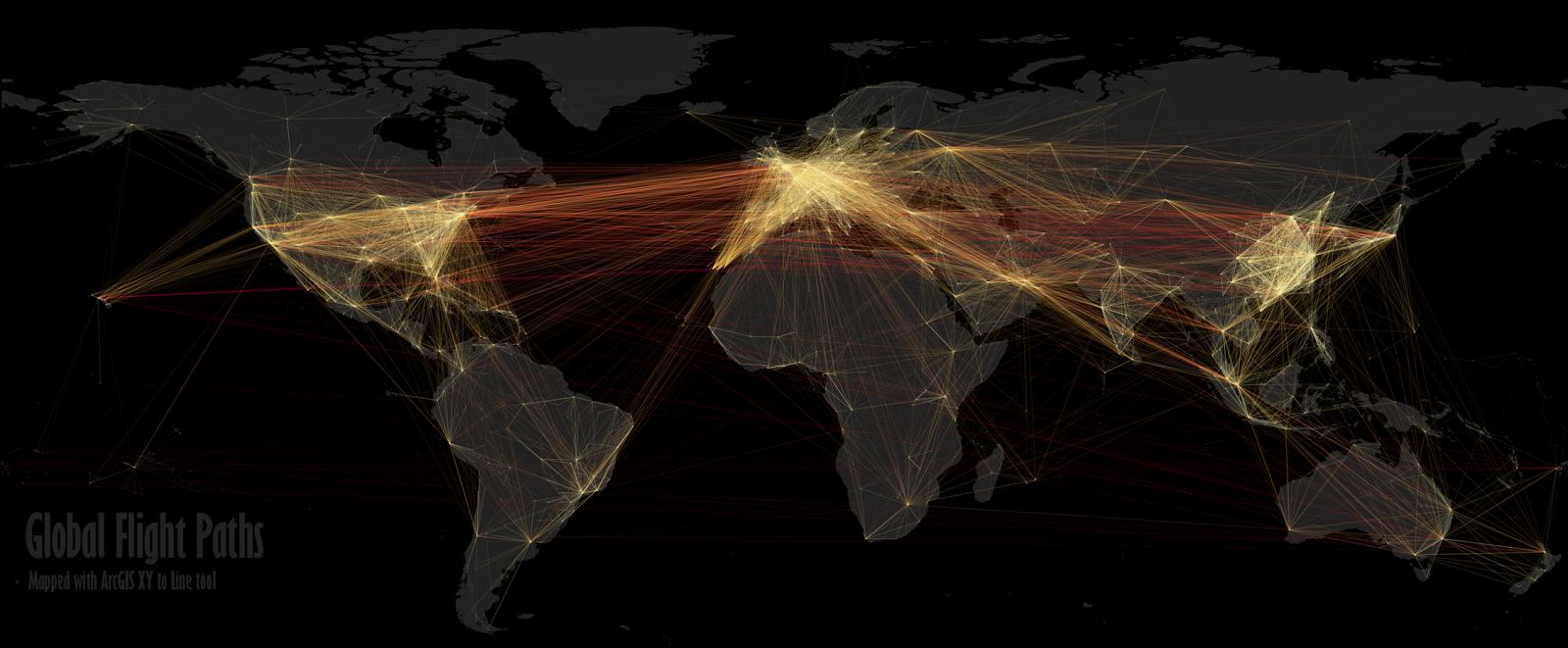
In one of my previous QGIS posts, on flow mapping, I outlined a method for mapping origin-destination data related to movements, rendered as a collection of straight lines from point a to b. One thing I didn't do in that post was explain how you get the 'glow' effect to make the lines appear brighter at higher densities (example below).
Since a few people have asked about it, I thought I'd share it - and thanks to Nyall Dawson and all the other QGIS developers for making this possible. If I begin with a commuting flow dataset I made for England and Wales and just add it to QGIS, here's what I get (click on the individual images to see them full size):
 |
| A little glowing flow map example from my US commuting map |
 |
| We can see the country outline, that's about it |
Next, let's try reducing the default line width from 0.26 to 0.1 and see what happens...
 |
| This is a bit clearer, but still not very useful. |
We could darken the background (via Project > Project Properties > General) to make the lines stand out more...
 |
| This is getting a bit better now, but still not great |
Okay, let's now change the colour and introduce some feature transparency and see how this looks:
 |
| Definitely an improvement, but not great |
Note how this was done, if you don't already know:

So far, so good. But what about the glow effects? That's where feature blending mode comes in - as you can see below:

With a line width of 0.1, transparency of 90% (because I have a couple of million lines here) and a Feature blending mode set to 'Addition' here's what I get:
 |
| You may need a different transparency % in your data |
What on earth do all the different blending modes do? There's 'Screen', 'Multiply', 'Dodge' and many more but it's not immediately obvious so here's a little summary from the QGIS 2.8 documentation pages on the subject:

To see the different impact each feature blending mode has, it's best to try them - for example, if you want a less 'glowy' version of the previous example above, you could used 'Dodge', as shown below:
 |
| Similar to the previous one, but this is 'Dodge' |
Of course, you could also decide that you want the lines to be different colours and symbolise them differently based on their length. With this, you take a different approach and it would look something like the image below, where I've used reds:
 |
| No feature blending here, just layer symbology and ordering |
To achieve the above, you'd have to have a line length field (but that's easy in QGIS) and then color different lengths slightly differently and then use layer ordering. This too requires a good bit of experimenting to get right (and the ones shown here are far from perfect examples) but here's an example from the layer properties dialogue:
 |
| Note: click 'Advanced' to see symbol levels |
The only other thing to mention is that when you zoom in you'll see things differently and perhaps need to change the symbology to suit the zoom level. You can see this for the example below where I've zoomed in to London and changed the transparency down to 70%:
 |
| Now we can begin to make more sense of the flows |
If you want to know how to create the flow lines in the first place, check out my previous post on the subject, where I also provide a sample dataset to work with. Once you've got things looking as you want them, you can then add labels and all sorts of other things to make your map more informative. Note that I used QGIS 2.10 here but this should work from QGIS 2.2 and above.