
Showing posts with label flows. Show all posts

Sunday, 18 October 2015

Glowing lines in QGIS

In one of my previous QGIS posts, on flow mapping, I outlined a method for mapping origin-destination data related to movements, rendered as a collection of straight lines from point a to b. One thing I didn't do in that post was explain how you get the 'glow' effect to make the lines appear brighter at higher densities (example below).

A little glowing flow map example from my US commuting map

Since a few people have asked about it, I thought I'd share it - and thanks to Nyall Dawson and all the other QGIS developers for making this possible. If I begin with a commuting flow dataset I made for England and Wales and just add it to QGIS, here's what I get (click on the individual images to see them full size):

We can see the country outline, that's about it

Next, let's try reducing the default line width from 0.26 to 0.1 and see what happens...

This is a bit clearer, but still not very useful.

We could darken the background (via Project > Project Properties > General) to make the lines stand out more...

This is getting a bit better now, but still not great

Okay, let's now change the colour and introduce some feature transparency and see how this looks:

Definitely an improvement, but not great


Note how this was done, if you don't already know:


So far, so good. But what about the glow effects? That's where feature blending mode comes in - as you can see below:


With a line width of 0.1, transparency of 90% (because I have a couple of million lines here) and a Feature blending mode set to 'Addition' here's what I get:

You may need a different transparency % in your data

What on earth do all the different blending modes do? There's 'Screen', 'Multiply', 'Dodge' and many more but it's not immediately obvious so here's a little summary from the QGIS 2.8 documentation pages on the subject:


To see the different impact each feature blending mode has, it's best to try them - for example, if you want a less 'glowy' version of the previous example above, you could used 'Dodge', as shown below:

Similar to the previous one, but this is 'Dodge'

Of course, you could also decide that you want the lines to be different colours and symbolise them differently based on their length. With this, you take a different approach and it would look something like the image below, where I've used reds:

No feature blending here, just layer symbology and ordering

To achieve the above, you'd have to have a line length field (but that's easy in QGIS) and then color different lengths slightly differently and then use layer ordering. This too requires a good bit of experimenting to get right (and the ones shown here are far from perfect examples) but here's an example from the layer properties dialogue:

Note: click 'Advanced' to see symbol levels

The only other thing to mention is that when you zoom in you'll see things differently and perhaps need to change the symbology to suit the zoom level. You can see this for the example below where I've zoomed in to London and changed the transparency down to 70%:

Now we can begin to make more sense of the flows

If you want to know how to create the flow lines in the first place, check out my previous post on the subject, where I also provide a sample dataset to work with. Once you've got things looking as you want them, you can then add labels and all sorts of other things to make your map more informative. Note that I used QGIS 2.10 here but this should work from QGIS 2.2 and above.


Saturday, 11 October 2014

Flow mapping with QGIS

[Now updated with sample data file - see Step 1.]
I've written quite a bit about flow mapping with GIS in the past, including on this blog, and in a couple of academic papers. Previously, I'd used ArcView 3.2, ArcGIS 9 or 10 and MapInfo. MapInfo in particular has been my 'go to' GIS for mapping large flow matrices, thanks to a very short line of MapBasic code explained to me by Ed Ferrari. Others, such as James Cheshire, have used R to great effect, but this post is instead about flow mapping with QGIS, which I am extremely impressed with for its flow map capabilities. I've posted many of my QGIS flow maps on my twitter but in this post I want to explain a little bit about the method so others can experiment with their own data. Here's an example of a flow map created in QGIS - though in this case it's not a very satisfying result because of population distribution, county shape and so on*.

US county to county commuting

So, to the method. If you want to create these kinds of maps in QGIS, it's mostly about data preparation. I should also add that I currently use version QGIS 2.4 but I believe the method is the same in any version. Here's the ingredients you need.

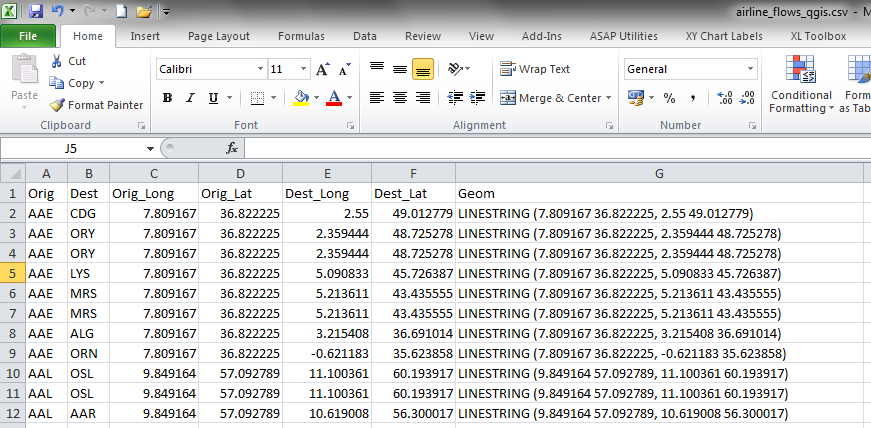
1. A file with some kind of flow data, such as commuting, migration, flight paths, trade flows or similar. There should be columns with an origin x coordinate, origin y coordinate, destination x coordinate, destination y coordinate, some other number (such as total commuters) and any other attributes your dataset has (such as area codes and names). Here's an example csv file of global airline flows, if you want to experiment - it's the one from the screenshots below. I put it together using data from OpenFlights - by combining the airports.dat and routes.dat files. 

2. Once you have a file with the above ingredients, you then need to create a new column which has the word 'LINESTRING' in it, followed by a space, an open bracket, then the origin coordinates separated by a space, followed by a comma and a space, then the destination coordinates separated by a space and then a close bracket - as you can see below. You don't actually need to call the column 'Geom' as I have below, but when you import the file into QGIS it will ask you which column is the 'geom' one. You can create the new column in Excel by using the 'concatenate' function. If you're not familiar with it, there are loads of explainers online.

This bit probably takes the most time

3. Once you have your data in this format, you need to save it as a CSV so it's ready to import into QGIS. From within QGIS, you simply click on the 'Add Delimited Text Layer' button (the one that looks like a comma) and then make sure your settings look like the example below.

Make sure you click the right import button
Import CSV dialogue in QGIS - should be on WKT

4. Once you've done this, you simply click OK and wait a few seconds for QGIS to ask which CRS (coordinate reference system) you want to use. Select your preferred option here and then wait a few more seconds and QGIS will display the results of the import. You can then right click on the new layer and Save it as a shapefile, or your other preferred format. In the screenshot example above, the file with c60,000 airline flows took only about 10 seconds to appear on my fairly average PC running 64 bit Windows 7. I also tried it with 2.4 million lines and it only took about a minute. If you try this in ArcGIS - in my experience - it normally doesn't work with that many flows but MapInfo will handle it okay, but take longer. However, QGIS will render it more nicely as it handles transparency in a more sophisticated way and with hundreds of thousands of flows you usually have to set the layer transparency to 90% or higher.

The results, once you've done a bit of symbolisation and layer ordering, will look like some of the examples below.

Rail flows


All commuter flows


Bus flows - no labels, obviously

* I'm still trying to make sense of the US county to county flow map. The spatial structure of the counties and the distribution of the population make it more difficult to filter, so the above example is just a very rough (and not very satisfying) example.


Addendum: since a few people have asked, I've done a new post on how to make the lines appear to glow

Wednesday, 3 September 2014

A national map of cycling to work

I've recently being doing some visualisation work with the newly released Census commuting data from 2011. I've produced maps of all travel to work, and travel by car, train and bus. I've now done a map of cycling to work (below). This map is particularly interesting in relation to the patterns it reveals but also in relation to the strange long-distance flows we can see. I'm certainly not saying that anyone actually commutes by bike between Manchester and Bristol, as the map may suggest. Click on the big version and have a look around to see if you can spot anything interesting or particularly unexpected. A version with some place name labels can be found here.
This data comes from Question 41 of the 2011 Census form, which asked people to say how they 'usually' travelled to work in relation to the mode of transport which accounted for the largest part, by distance, of their journey. The results can look quite beautiful on a map, but they can also be confusing. Look closely at the map above and you'll ask yourself why there are so many long distance cyclists in England and Wales. More seriously, you might begin to question the validity of the data, the honesty of respondents or some other aspect of the results. 

The ability to interrogate datasets in this way is one of the strengths of visualising large datasets in that we can often immediately identify anomalous patterns or results that confound expectations or are just plain wrong. I'm not entirely sure what's going on with the long-distance flows. Perhaps some people take their bike on a train so ticked the 'bike' option, despite the train journey being longer. Perhaps some people live in one part of the country during the week and cycle to work there but then live at their usual address during the weekend and this is registered as their residence on the Census forms. I'm only speculating but this could be one possible explanation. 

In the image below, I've filtered the data so that only flows of 2 or more are shown. This significantly reduces the visual clutter, but also draws out stronger long distance connections between places such as Bristol and Manchester, and indeed Manchester and lots of other places. Take a closer look by clicking the link below this map. I've added some place names to this map to help with orientation.

Go to the full size version

I'd be keen to hear different interpretations on the data. You get similar results when you map the 'walk to work' data so there's definitely something interesting going on with how people have answered the Census question and the data we have to work with. I'm certainly not saying it's 'wrong', more that we need to understand what exactly it tells us. For now, I'll leave it at that.


N.B. Why didn't I include Scotland and Northern Ireland? The data are not out yet. It's not some ploy to exclude anyone and I know the blog title says 'national' so forgive me if that threw you. I intend to expand the analysis in due course.

Thursday, 6 November 2008

Yet another flow mapping post...

The reason for another of these posts is that I've been contacted by various people in different parts of the world (the USA, Australia, England) about flow mapping; how to do it, what to use it for and so on. Well, I think much more development is needed. I also need to keep blogging but I've been busy recently - poor excuse though. So, more results of my experiments in flow mapping... all of which use migration data from the 2001 UK Census.

First we have flow lines for the United Kingdom, at district level and then along the side I show different link magnitudes. This map shows 'gross' flows. That is, the flow lines represent the total link between two places (so, if A to B = 100 and B to A = 50, the gross link = 150).


On the second map, I've shown the same data but at ward level (n.b. there are about 430 districts and about 10,000 wards - as you'll understand, the migration matrices are pretty big). I've had to filter it to show only flows of 12 or more otherwise it's a jumbled mess.


On the third map, I've shown this data just for South East England, in the area surrounding London. This illustrates, to varying degrees of success, the level of functional polycentricity which exists in relation to household mobility.


Finally, I've attempted something different. I've produced a smooth surface raster, based on 2.5km cells, of all ward level migration. In some ways it is a success, but we can never really overcome all the limitations of 2D display. However, it does tell a story.

Thursday, 4 September 2008

The New vs. the Old - Flow Mapping

Back again to a familiar topic - flow mapping. In the past all we had was paper and two dimensions. Now we have e-everything and things can easily be displayed in three dimensions (or 2.5D as we say in the GIS world). The reason for this post is that I'm currently revising some maps for a journal and I have come to the conclusion that some things just can't be effectively displayed in a static, old fashioned manner - they must be made interactive to work properly.

The map below shows about as much as it is possible to show in a traditional geovisualisation of migration. Here I have shown all moves into Manchester (the local authority) between 2000 and 2001, with reciprical links (i.e. where people have moved both in and out along the flow line path) in red, with unique inflows in yellow. I'm busy with other things now, and am still working a lot on the e-learning and screencasting side of things, so time to go...